
14.05.13 Record MAC Visit

Record a MAC Visit

MAC visits can only be recorded and sent from the students’ enrolment. Go to the Event Log tab and create a new note of type MAC Visit as shown below. This will send a MAC visit message to the ITR upon clicking the “Add Event” button.
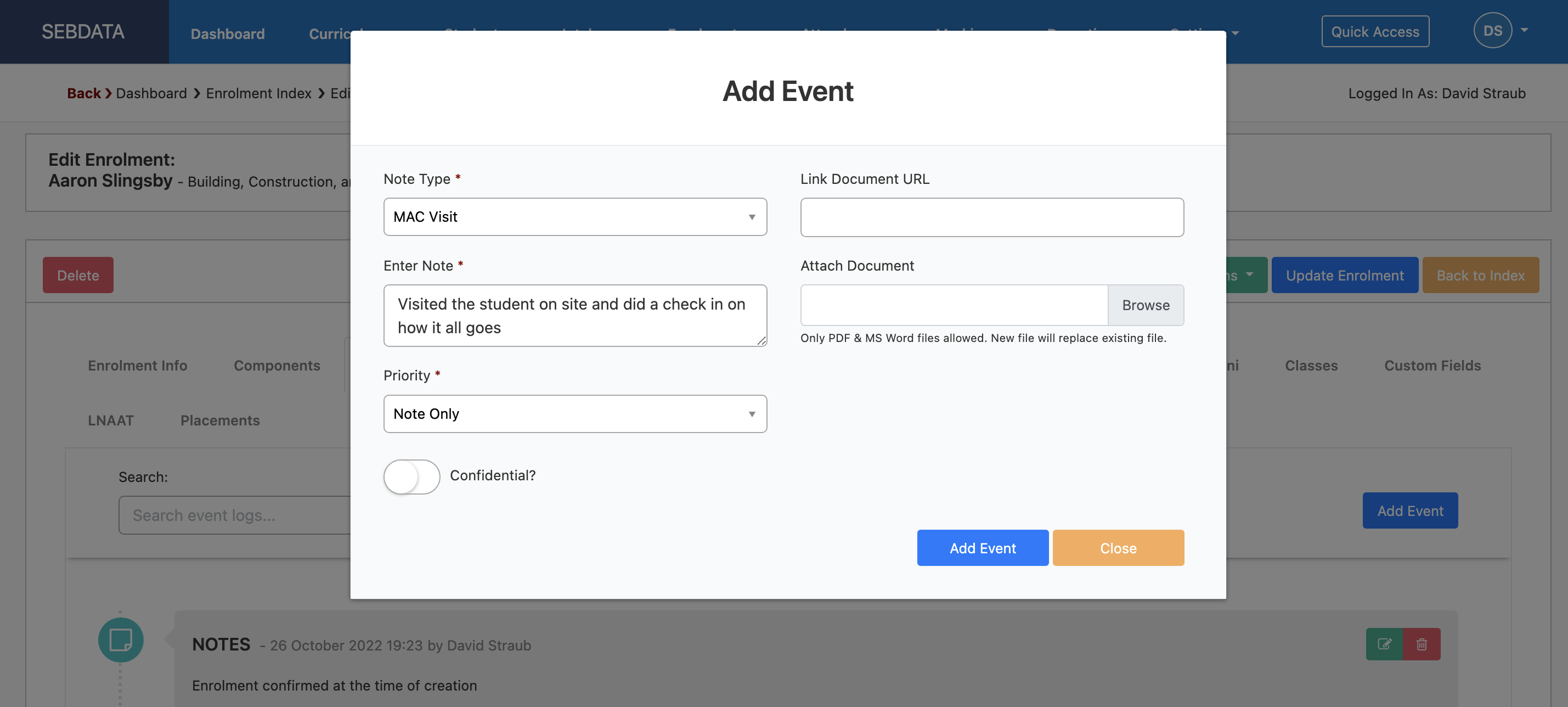
Graphical user interface, text, application, website

Description automatically generated

If you delete the event later on. It will send a delete MAC visit message to the ITR.

Record a MAC Visit over API

You can now send a MAC Visit ITR message through the SELMA API.

The endpoint for MAC Visit is: `CreateMacVisitEvent` – `app/event/mac_visit`.

The body payload for the Api:

{

“enrolmentId”: 0,

“macVisitDate”: “2024-03-14T08:16:02.167Z”,

“note”: “string”,

“isCompleted”: true,

“isConfidential”: true

}

When data is posted to the API endpoint, it will trigger the MAC Visit ITR message, which will then be recorded in the enrolment Event Log and ITR report log. This allows for monitoring of the ITR response and taking necessary actions in case of an unsuccessful message.

Related Articles

14.05.05 Change Employer

Change Employer In the event of the student changing employment during their studies, the employer on the student record can simply be changed. Make sure you also select a contact for the new employer. To do so navigate to Students -> Manage Students -> Select desired student and under the “Student Details” tab you can …

14.05.04 Validate Students for ITR

Validate students for ITR You can either create a new student or open an existing student and set the “Validate data for” option to ITR. With this validation on, SELMA will check if all required data on the student is recorded before saving the record. Below screenshot shows the error message with detailed instructions of …

14.05.09 Transfer ITR Enrolment

Transfer Enrolment to New Programme Version The process of transferring enrolments to the new program version is straightforward: Navigate to the enrolment associated with the old program version and edit it. After making the necessary edits, select the “Send Transfer Programme Version” link from the Enrolment Action button. This action will trigger the transfer process. …

14.04.01 Updated NZQA Qual Check

If you deliver approved NZQCF Qualifications or Micro-Credentials, here’s a brief guide on how to generate a QE1 batch ready for submission to NZQA. Pre requisites: Programme: Under NZ Compliance tab, “NZQA” section must be filled out accurately. Enrolment: When the enrolment status is changed to “Finished and Completed”, the completion date is populated on …