
14.05.04 Validate Students for ITR

Validate students for ITR

You can either create a new student or open an existing student and set the “Validate data for” option to ITR. With this validation on, SELMA will check if all required data on the student is recorded before saving the record. Below screenshot shows the error message with detailed instructions of which fields need to be set to successfully validate the record for the ITR:
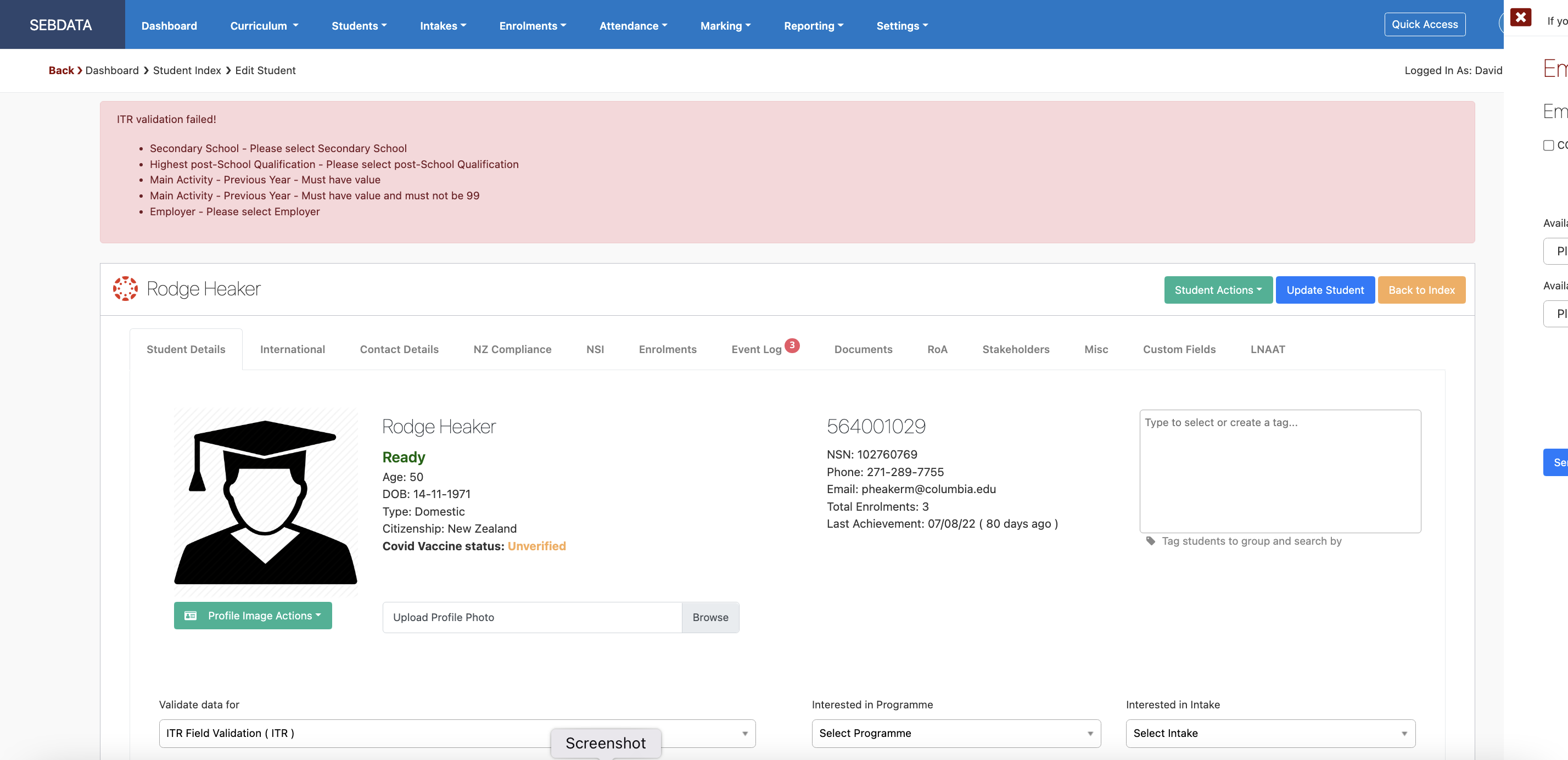
Graphical user interface, application, website

Description automatically generated

Once all data is entered and the record saved, the student is ready to be enrolled into an ITR programme.

Related Articles

14.05.05 Change Employer

Change Employer In the event of the student changing employment during their studies, the employer on the student record can simply be changed. Make sure you also select a contact for the new employer. To do so navigate to Students -> Manage Students -> Select desired student and under the “Student Details” tab you can …

14.05.11 Withdrawing TA / Enrolment

Withdraw Training Agreement When the learner ceases training with the employer and does not intend to continue training at any time in the future, the training agreement should be withdrawn. Withdrawing the training agreement will cause all ACTIVE, GRACE, HOLD or PENDING programme enrolments to be withdrawn and the training agreement status set to FINISHED. …

14.05.13 Record MAC Visit

Record a MAC Visit MAC visits can only be recorded and sent from the students’ enrolment. Go to the Event Log tab and create a new note of type MAC Visit as shown below. This will send a MAC visit message to the ITR upon clicking the “Add Event” button. If you delete the event …

14.01 SDR in SELMA

SDR in SELMA To extract an SDR, go to Reporting -> SDR -> Select the correct SDR date and download it. In some SELMA instances, the files are sent by email as they are too big to be downloaded and processed in a browser session. In these systems, the only option is to send the …