
14.05.14 ITR Messages / Reports

Manage Messages in the ITR Reporting Screen

To navigate to the screen below, go to Reporting -> ITR.

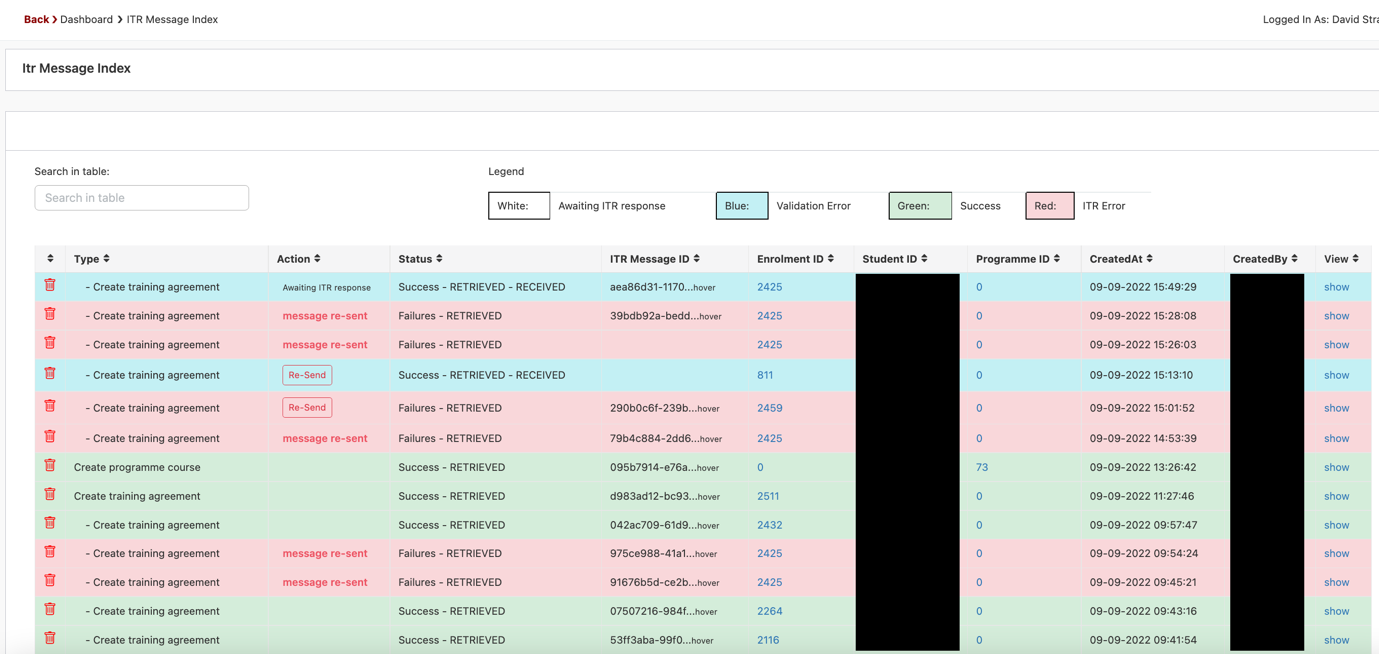
This is the central screen that shows all the messages going to the ITR and their responses. It is an extremely helpful screen to see what is awaiting a response, has validation errors or was processed successfully:
Graphical user interface, application

Description automatically generated

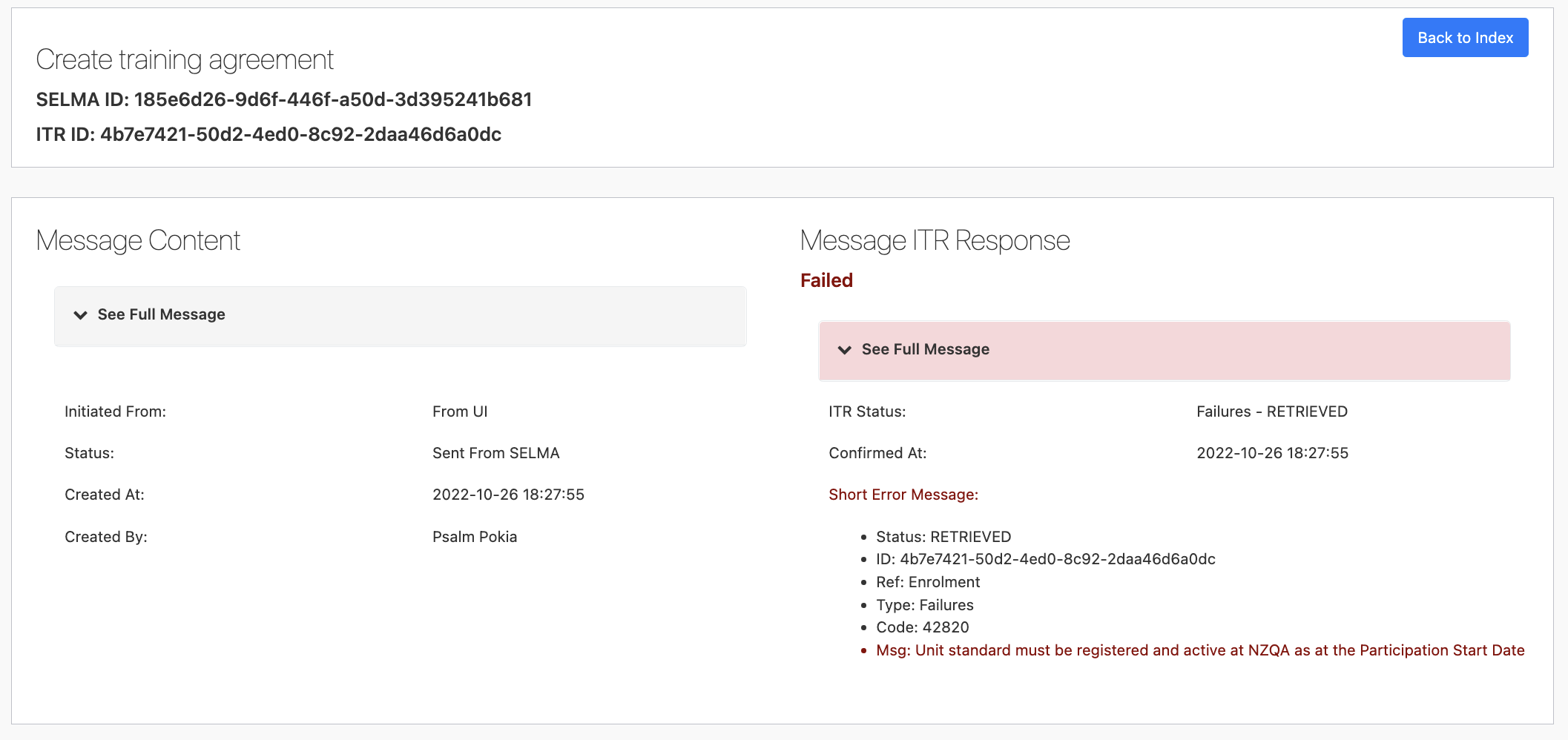
All messages in RED will need your attention, click on show to see the details of the message. You can see both the message sent on the left and the response on the right. SELMA will show the error in red, in below example a unit standard is not registered for the provider with NZQA.
Graphical user interface, application, Teams

Description automatically generated

You can use the “See Full Message” button to extend the message and to see the full XML code that was sent or retrieved from the ITR.

Related Articles

14.05.03 Create Employer

Create Employer and Contacts Before creating students and validating them for the ITR, the organization (employer) and the contact within the organization should be setup. For this, create an organization as usual under Settings -> Organisations and make sure that the Location Authority and the Industry Code are set for the organisation: After that, make …

2025 DXP SDR

SDR Changes SELMA has implemented a new feature and introduced new fields to align with the latest DXP SDR. Below is the summary of the field changes in the DXP SDR. For detailed specifications and implementation guidelines, please refer to the official TEC documentation at Data Specifications for the Single Data Return – Data System …

14.05.01 Create ITR Programmes

In SELMA, the ITR works only for intakes and enrolments that are for an ITR programme. When a new programme is created, and the return type is set to “ITR”, every enrolment into it will automatically be an ITR enrolment. You can use SELMA simultaneously for programmes that are not reported through the ITR (e.g. …

14.05.13 Record MAC Visit

Record a MAC Visit MAC visits can only be recorded and sent from the students’ enrolment. Go to the Event Log tab and create a new note of type MAC Visit as shown below. This will send a MAC visit message to the ITR upon clicking the “Add Event” button. If you delete the event …