
6 – Organizations

“Organisations” refers to external parties affiliated with your institution. These may be employers, agencies, other educational institutions, etc.

Navigate to Settings -> Organisations

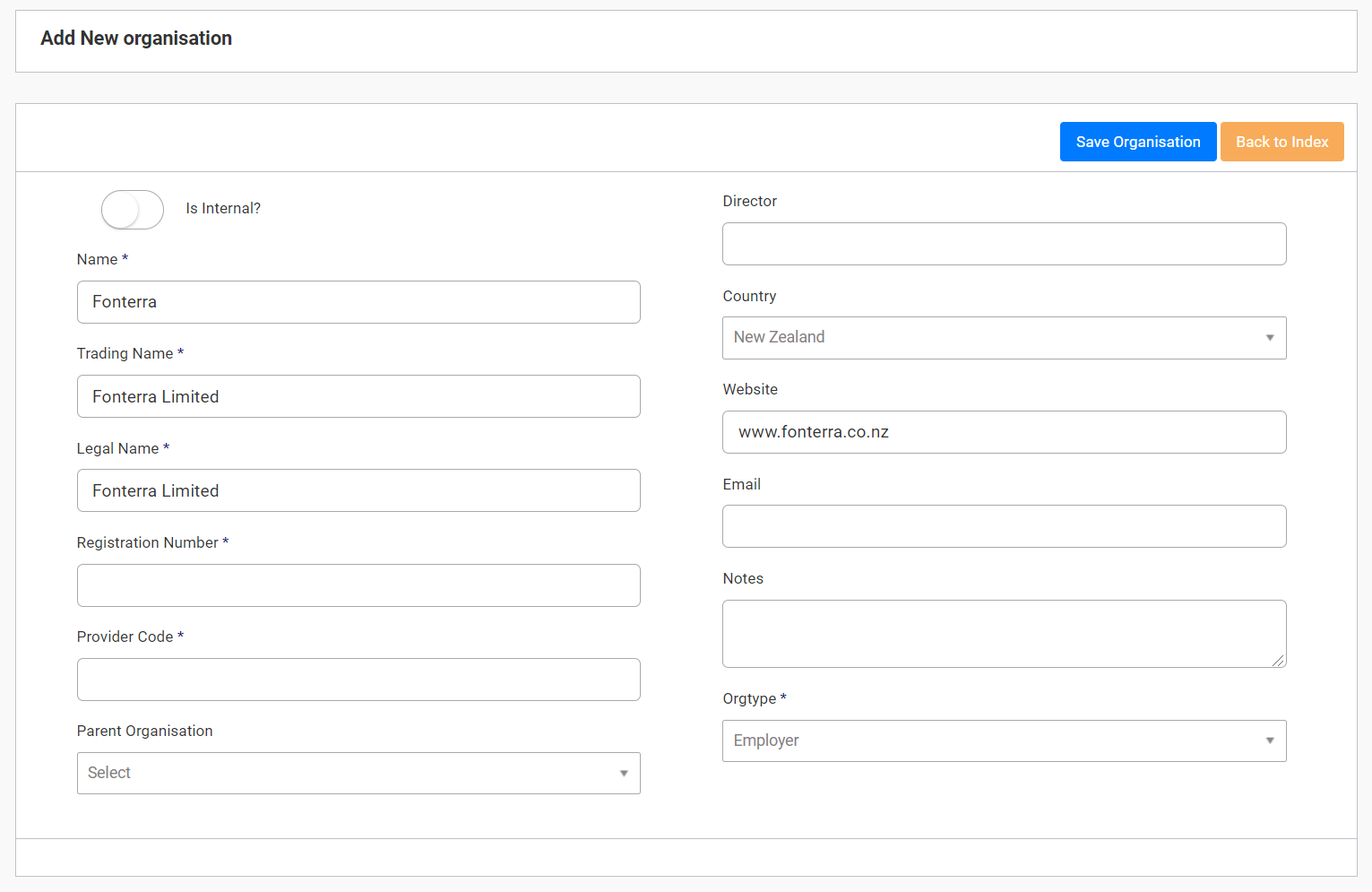
To add an organisation, click “Add Organisation” at the top right of the index page. Fill in the form and save your new organisation by clicking “Save Organisation”. 
To edit an organisation, click on the hyperlink (organisation name) under “Name” column. 
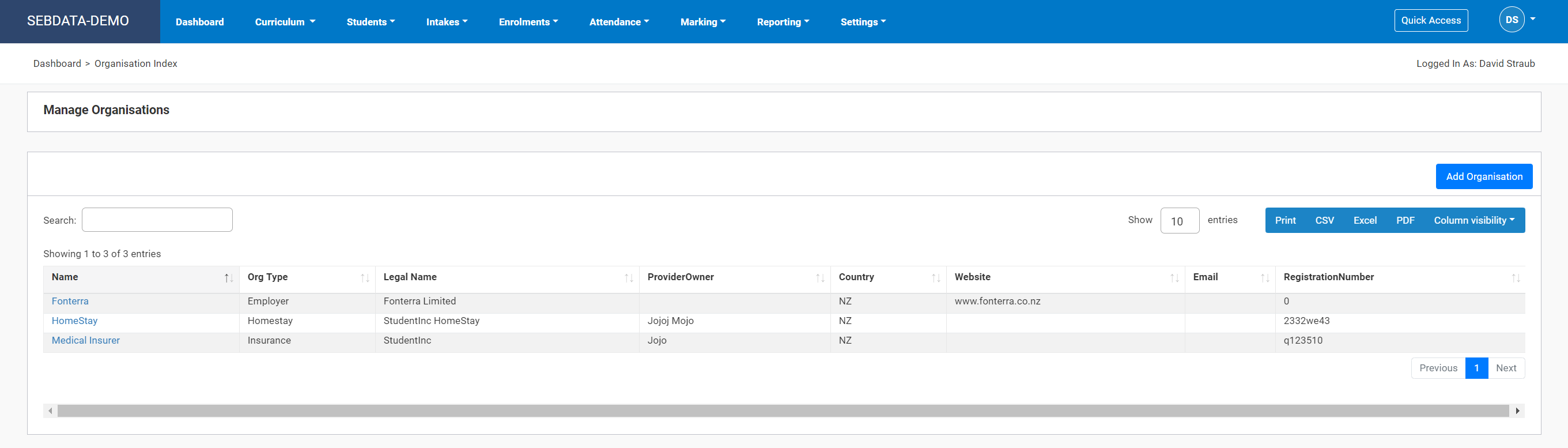
Organisations setup here will be available for selection in many areas of SELMA. E.g. agencies for international students or employers for apprentices.

Related Articles

2 – Campuses

On this page: Campuses Navigate to Settings -> Campuses Here you can add campuses information for your school to view and manage them all in one place. Add Campus Click ‘Add Campus’ on the top right to fill in the details of the campus you want to add. We recommend using a three-letter campus code …

1 – School Details

On this page: School Details Navigate to Settings -> My Organisation Your school will be setup by a SELMA consultant. However, you can make changes to your school by clicking on the edit button. If you use SELMA in the multi provider mode, the menu item under settings will be called Providers and when clicking …

3 – Security Tips

On this page: Security Settings Navigate to Settings -> Security The security menu is used to set how users will log in to SELMA. A consultant would have set this up for you in the beginning, however, you can make changes to this if you e.g. prefer that all users have to login via 2FA …

8 – Lookup Data

The lookup data menu allows you to manage lookup data in drop down lists such as “Note Types”, “Attendance Codes” or “Marketing Sources”. Navigate to Settings -> Lookup Data When clicking on a lookup data area, you will notice that some lookup data is locked for editing. Those are used by the system to perform …