
14.05.03 Create Employer

Create Employer and Contacts

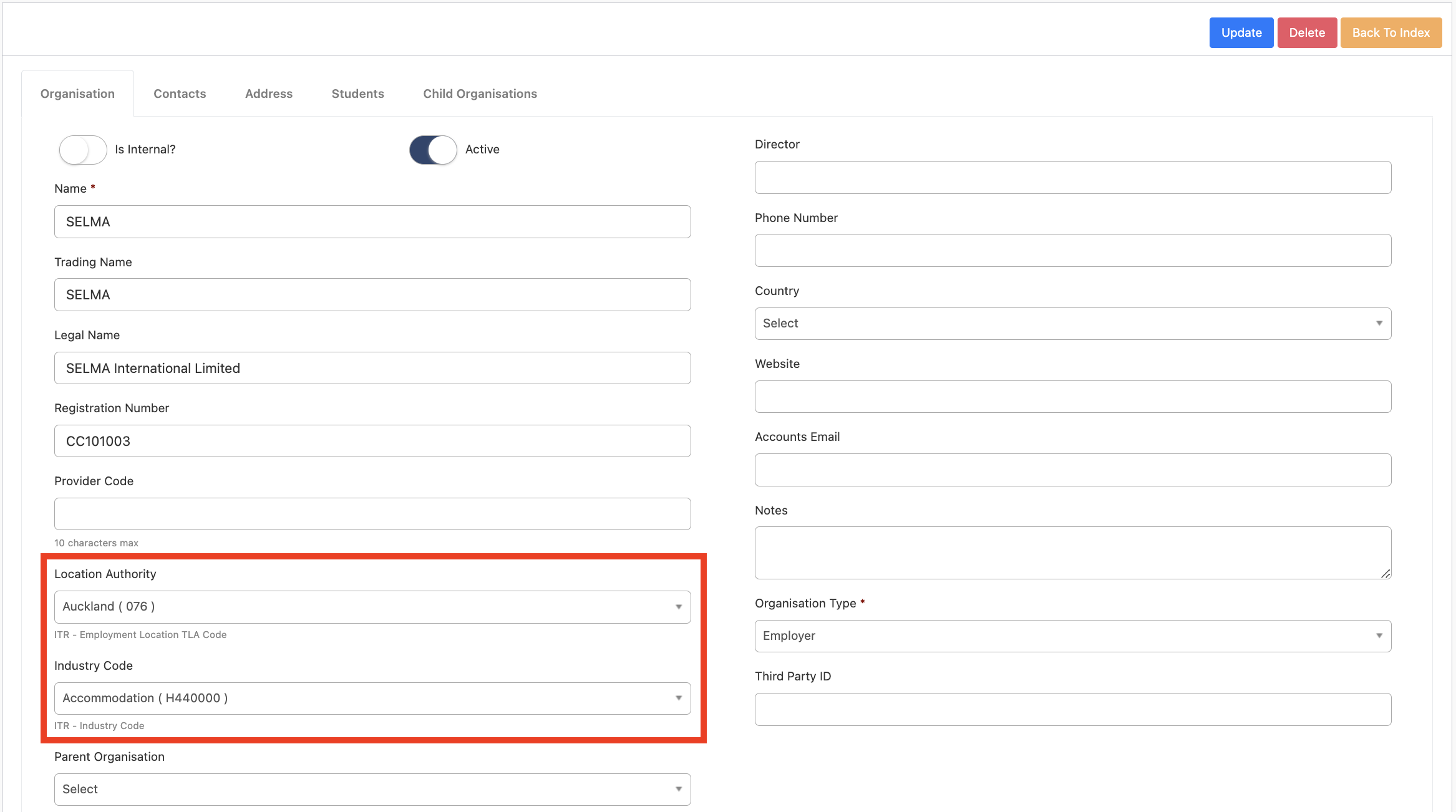
Before creating students and validating them for the ITR, the organization (employer) and the contact within the organization should be setup. For this, create an organization as usual under Settings -> Organisations and make sure that the Location Authority and the Industry Code are set for the organisation:
After that, make sure that there is at least one contact created and linked to the organisation:
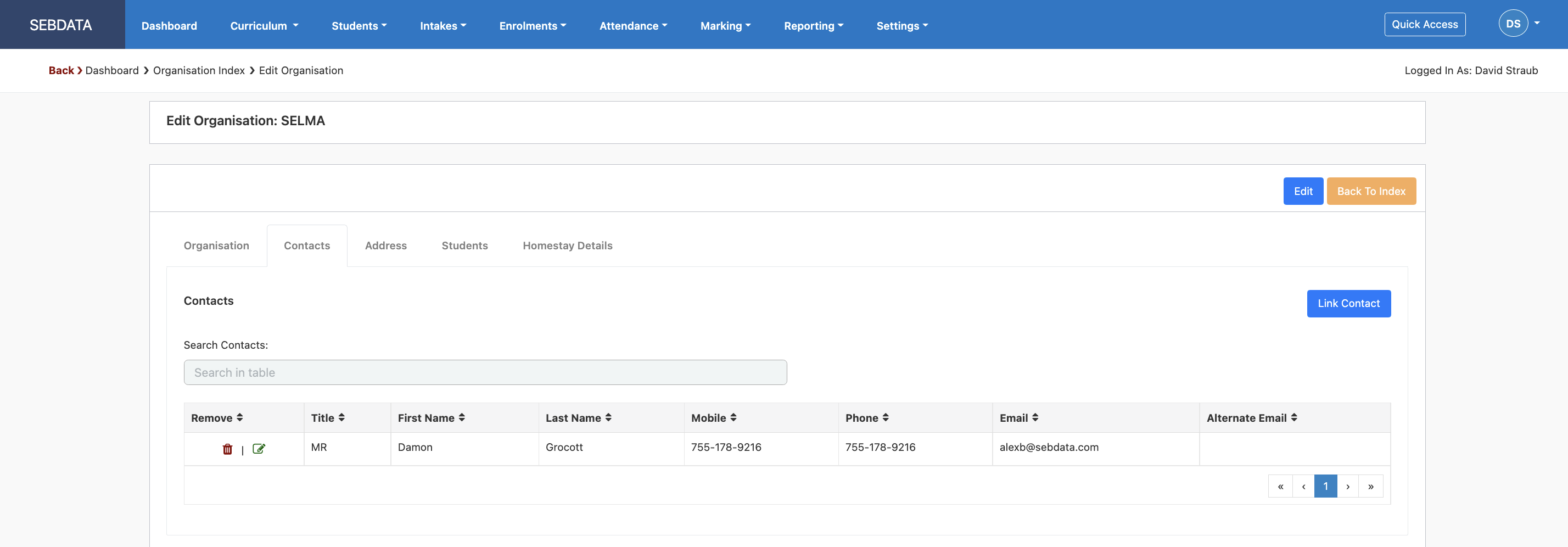
The organisation and the contact will later be used to link against the student as the Employer for the students’ studies.

You can use the “See Full Message” button to extend the message and to see the full XML code that was sent or retrieved from the ITR.

Related Articles

14.05.07 Enrol a Student

In SELMA navigate to Enrolments -> Enrol Student(s) On the enrolment screen, select the intake you would like to enrol learners into. If the intake funding is set to NZA & IT, an extra drop down will show you for you to set the fund for the specific student you are enrolling (Please select Enrolment …

14.05.04 Validate Students for ITR

Validate students for ITR You can either create a new student or open an existing student and set the “Validate data for” option to ITR. With this validation on, SELMA will check if all required data on the student is recorded before saving the record. Below screenshot shows the error message with detailed instructions of …

14.05.14 ITR Messages / Reports

Manage Messages in the ITR Reporting Screen To navigate to the screen below, go to Reporting -> ITR. This is the central screen that shows all the messages going to the ITR and their responses. It is an extremely helpful screen to see what is awaiting a response, has validation errors or was processed successfully: …